Getting started
Hands up. Here are the moves.
Trackpad and Joystick movement, plus fist pause, are free with no time limit. Other gesture actions require a one-time license. A lock hint means the gesture was recognized but needs unlocking.
Choose a control style in Settings → Movement. Both use the same click, drag, scroll, and stop gestures. In Settings, choose Fist or Distance as the Lift method. Distance pauses movement when you pull your hand back; no calibration is needed.
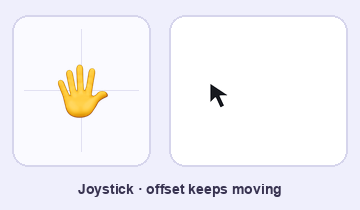
Joystick
Your hand’s position relative to the center sets direction and speed. Holding it away from the center keeps the cursor moving. Bring it back to center to stop.
Make a fist to stop and establish a new center when Fist Recenters Joystick is enabled.
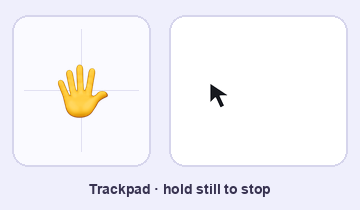
Trackpad
Move your hand to move the cursor. Hold still to stop. Make a fist to reposition, then open your hand to keep going.
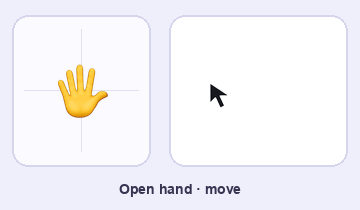
Move the cursor
Open your hand and move. In Trackpad mode, hold still to stop. In Joystick mode, return to the minimap’s center.
The minimap shows your hand’s position relative to the center.
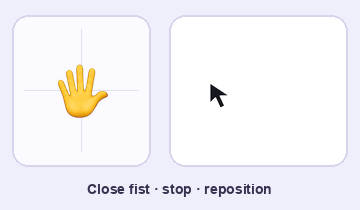
Fist
Make a fist to stop and release the mouse button. Reposition your hand, then open it to keep going.
Joystick re-centering is on by default and can be changed in Settings. A fist with your other hand also stops movement.
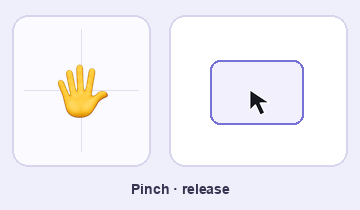
Click
Pinch your thumb and index finger together. Release to click.
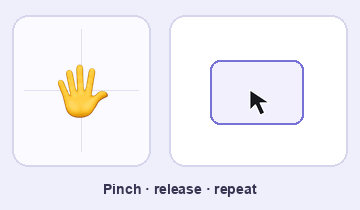
Double-click
Pinch and release twice, quickly, over the same target.
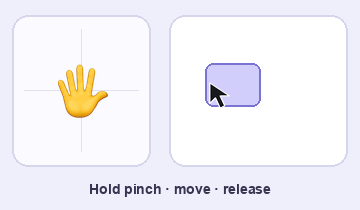
Drag and drop
Pinch an item. Hold the pinch as you move. Let go to drop it.
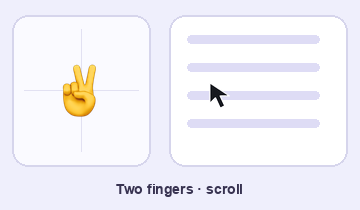
Scroll
Extend your index and middle fingers; fold your ring and little fingers. Move up or down to scroll, or sideways to scroll horizontally. Hold your hand still to stop—there is no center to return to.
Open your hand or make a fist to leave the scroll gesture.
Turn control on or off
Touch both index fingertips together and both thumb tips together to form a triangle. Hold until the ring completes; stopping takes at least two seconds. You can also use Start / Stop Control.
Right-click
Touch your thumb to your middle fingertip. Keep your index, ring, and little fingers open, then release.
Desktop shortcuts
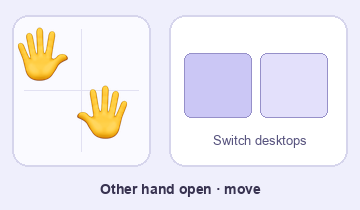
Hold your other hand open. Move your controlling hand about a hand’s width in one straight direction. Up opens Mission Control; down opens App Exposé; left or right switches desktops.
Cursor movement pauses while your other hand is open. Lower it to return to normal control.
Troubleshooting
Bring your entire hand into the camera view, separate your fingers clearly, and check the current gesture shown in the app. Try brighter, even lighting and a slower movement. If the gesture is detected but the cursor does not respond, check Accessibility access.
Scroll direction and optional scroll-to-zoom are available in Settings. Desktop shortcuts depend on your macOS keyboard shortcut settings.
Get help ↗